
How to make a sprite sheet on your phone or tablet
A sprite sheet is one image that holds every frame of a character's animation, laid out in a grid. Games read the grid and play the frames in order. If you already animate in FlipaClip, you already have the frames. The sprite sheet export puts them into that grid for you, on your phone or tablet, with no desktop tool and no manual cutting and pasting.
This guide shows how to draw a short loop, export it as a sprite sheet, and drop it into your game engine.
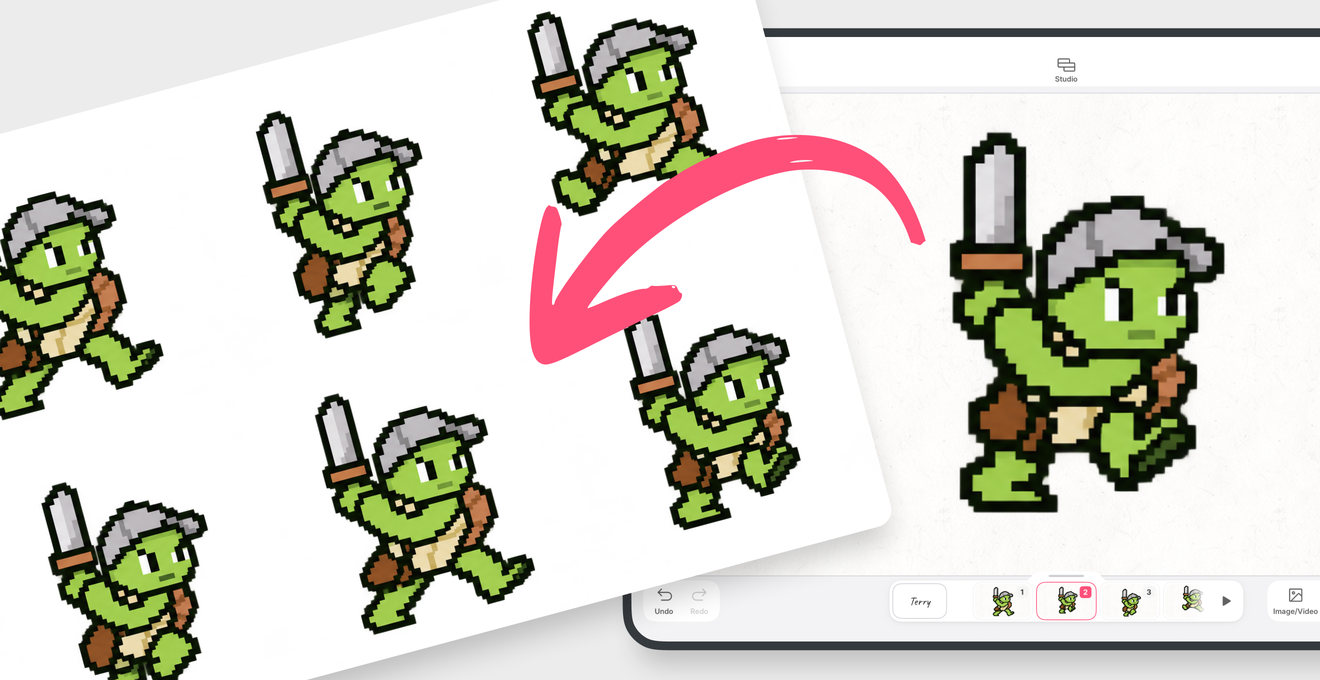
What you need
- FlipaClip on iOS or Android, version 5.0.2 or later.
- FlipaClip Plus. Sprite sheet export is a Plus feature, like PNG sequence export. Free users can see the option and will be asked to subscribe when they tap it.
- A game engine or tool that reads sprite sheets. Godot, Unity, Phaser and GameMaker all do.
Step 1. Set up your project for sprites
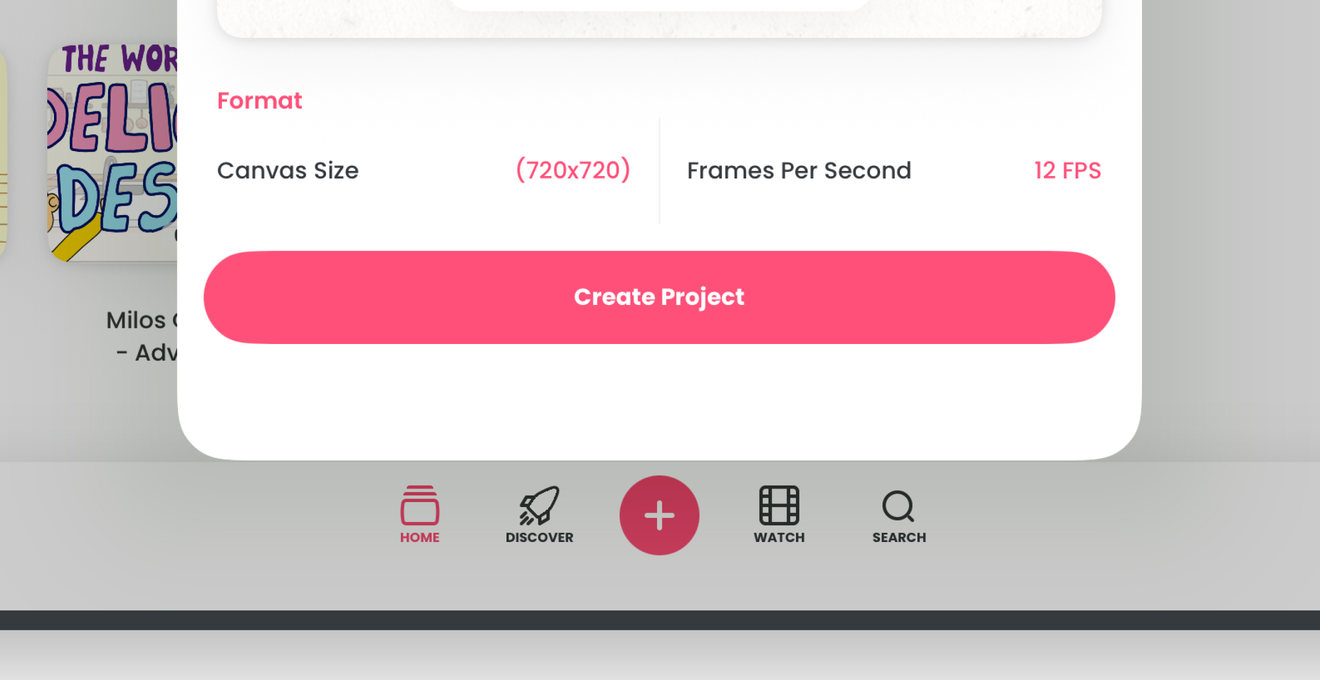
Start a new project and pick a square canvas. Games usually want sprites in a square cell, so a canvas like 256 × 256 or 512 × 512 keeps every frame the same size. Choose your frame rate when you create the project. 12 FPS (frames per second) is a common starting point for hand-drawn game sprites, and your game can slow it down or speed it up later.
Tip: keep the character in the middle of the canvas with some empty space around it. A sword swing or a jump that reaches the edge gets clipped in the sheet.
Step 2. Animate the loop
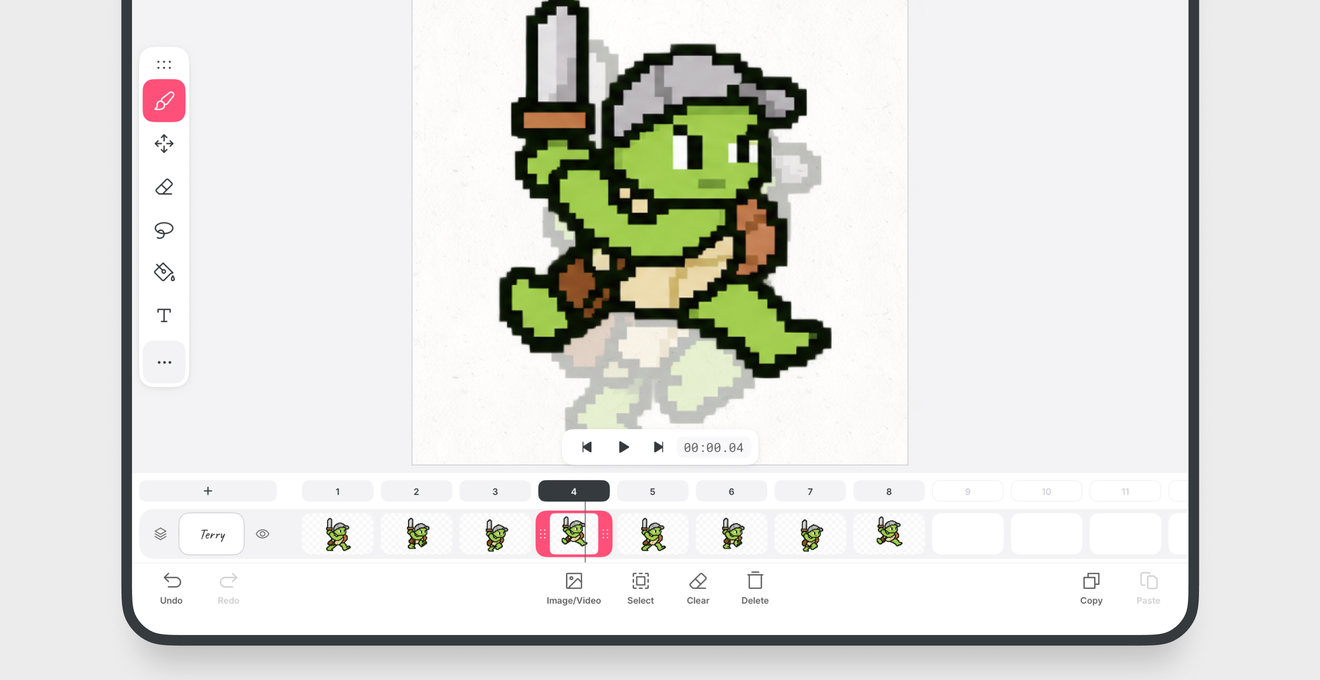
Draw your animation the way you always do: one drawing per frame, onion skin on, play it back until it feels right. For games, short loops work best. A walk cycle in 6 to 8 frames, an idle in 4, a jump in 5 or 6.
Two things make the export cleaner:
- Hold a frame instead of copying it. When a pose stays on screen for several frames, FlipaClip puts it in the sheet once and records how long it should show. Your sheet stays small.
- Leave the background layer empty. You'll export with a transparent background so the character sits on top of your game's own scenery.
Step 3. Export the sprite sheet
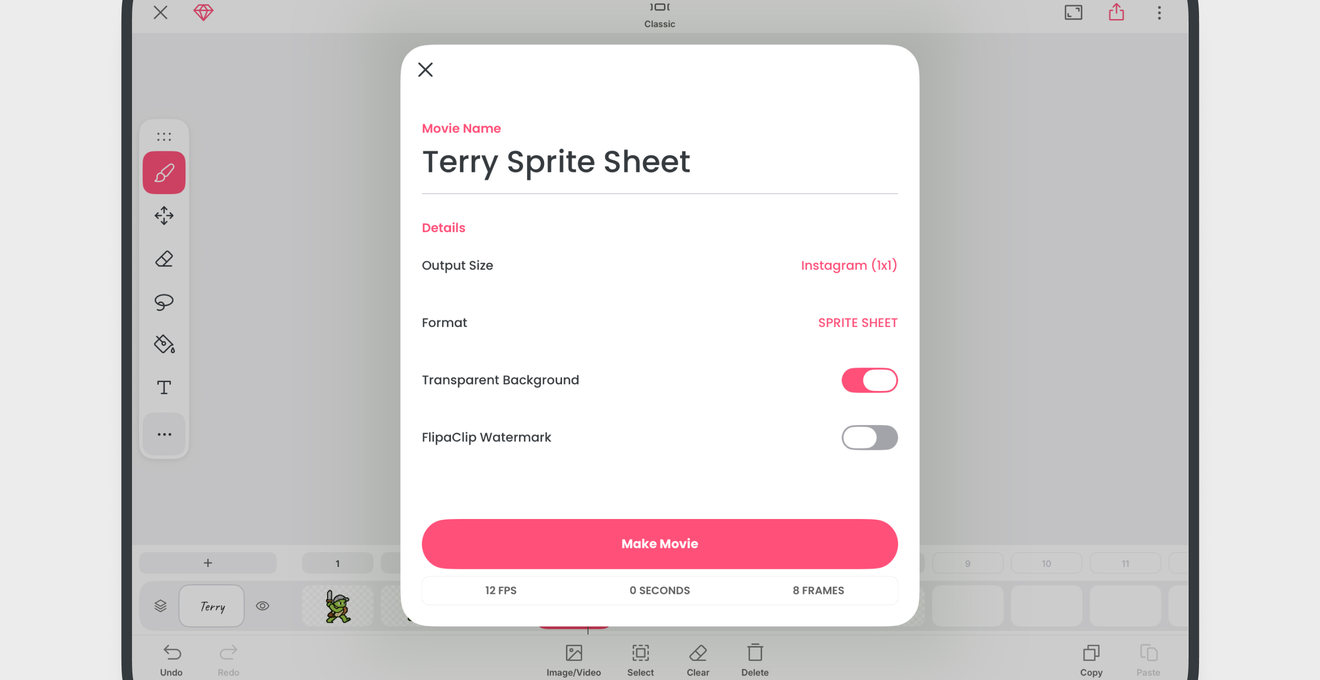
- Tap Make Movie.
- Tap Format (called Video Format on iOS) and choose SPRITE SHEET. It sits below MP4, GIF and PNG SEQUENCE.
- Pick the output size. Each cell in the sheet will be this size, so match it to the sprite size your game expects.
- Turn on Transparent Background.
- Tap Make Movie, then save the zip from the share screen.
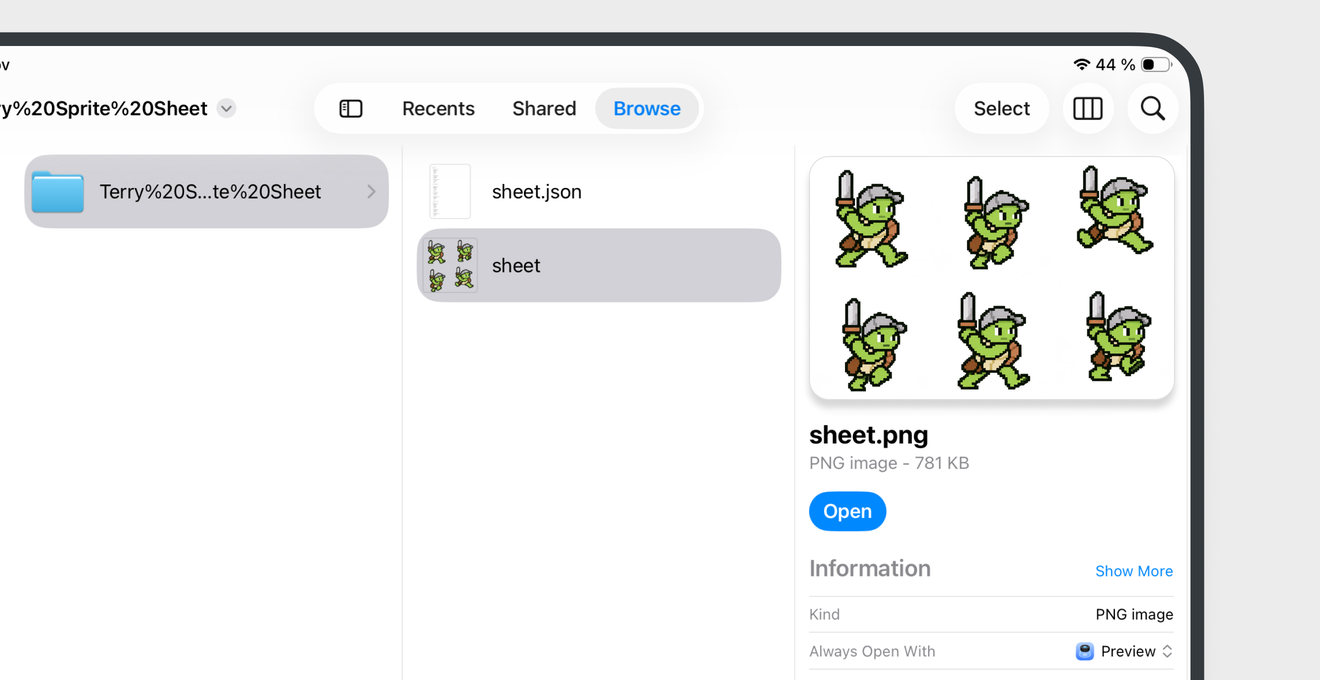
Where it goes: on iOS, tap Save to Files on the share screen and pick a folder. On Android, tap More on the share screen and choose where to send the zip, such as your Files app or Drive.
What's in the export
You get a zip file. Inside:
- sheet.png: the grid of your frames. Each distinct drawing appears once.
- sheet.json: a small text file that lists where each frame sits in the grid, how long it shows in milliseconds, and the frame rate.
The grid is kept close to square and never wider or taller than 4096 pixels. A long animation at a big output size spills onto sheet-2.png, sheet-3.png and so on, each with its own JSON file.
The JSON uses the same "array" layout that Aseprite exports, so any importer built for Aseprite sheets reads a FlipaClip sheet without changes.
Put it in your game
Godot: copy sheet.png into your project. Add an AnimatedSprite2D node, create a SpriteFrames resource and add frames from the sheet using the grid, with the cell size set to the output size you chose. If you use an Aseprite importer plugin, point it at sheet.json instead and the frames and timing come in on their own.
Unity: import sheet.png, set Sprite Mode to Multiple, open the Sprite Editor and slice by Grid By Cell Size with your output size. Drag the slices into the scene to create an animation clip.
Phaser: load the PNG and JSON together as an atlas: this.load.atlas('hero', 'sheet.png', 'sheet.json') . Then build an animation from the frame names in the JSON.
Other engines and tools: anything that slices a grid by cell size works with sheet.png on its own. Anything that reads Aseprite or TexturePacker JSON reads sheet.json.
Questions people ask
How do I make a sprite sheet on mobile?
Animate the frames in FlipaClip, tap Make Movie, choose the SPRITE SHEET format and save. The sheet and its JSON file are made on the device. No desktop app, no online converter.
What should a sprite sheet look like?
A grid of same-sized cells on a transparent background, with one pose per cell and the poses in play order. Game engines read the cell size and the order, so consistency matters more than layout.
Is there a free tool to make sprite sheets?
FlipaClip is free to download and animate in. Sprite sheet export is part of FlipaClip Plus, the same subscription that covers PNG sequence export and the other Plus tools.
How big should my sprites be?
It depends on your game. Pixel-style games often use 32, 64 or 128 pixel cells. Hand-drawn games go bigger. Pick the canvas size when you start the project and match the output size to it at export.
Does it work for hand-drawn animation as well as pixel art?
Yes. FlipaClip exports whatever you drew. Brush strokes, fills and pixel-style drawings all go into the sheet the same way.
Get FlipaClip
Download FlipaClip on the App Store or Google Play, start a project and make your first sprite sheet today. Share what you make with the FlipaClip community on Discord.